

There are many softwares available today over the internet which can Customize your Computer in an efficient manner that it looks so attractive as well as it becomes very easy to use. We always want our computer to be clean and well organized so that whenever we need to access something or need to search a particular file/folder in our computer we could find it easily.
Showing posts with label Tips and Tricks. Show all posts
Showing posts with label Tips and Tricks. Show all posts
How to submit site to Google, Yahoo, Bing
No commentsFriday, May 9, 2014

Once you submit your URL, it could take several days, weeks, or months for the search engines to index your page(s). Results may vary so don’t write this in stone. Factors such as other websites pointing to your site can affect this time as well.
How to Fix Printer Errors: Tips
1 commentTuesday, August 20, 2013

Printers can be terribly frustrating if they are found faulty. However, some easy techniques can solve hundreds of printer issues comfortably. Remote computer help( +Rami Saarikorpi )services provide support for fixing your irritating printer issues. With interactive solutions you not only solve the issues but you also become a technician for your own printer in the process.
The session of troubleshooting your printer issues with the online remote tech support providers can also be frustrating. The severity of the frustration can be increased if the computer help experts fail to diagnose the problem. Sometimes they start with the common aspects of the printer problems to detect the root of the problem. If they can't diagnose it immediately, you need not lose heart. They might provide you with a manual book or supportive diagram to detect the problem. You may need to go through such pages to see whether same kinds of problems are being occurred on your printer too. That is why it is always important that you should consult a good and specialized tech support experts.
If you notice that you are not being able to turn on the printer or if you can't take a print out of your printer all on a sudden, computer help experts suggest you to implement some tips at the very first. Tech support guys suggest you to check the printer connectivity. Make sure the printer is on and is getting power to be run. Check whether the green light or the indicator is on or not. If you see no indicator you need to check the power outset to ensure the printer is getting the power connection. If everything is fine here you need to try your hand on some other places too. In such case, you can give your PC a reboot. Rebooting a system resolves a number of issues many times. So, give it a try to see whether it clicks.
If you still see the problem, it is time to check with the program setting of the printer. You need to go to the start menu and then to the settings of Printer/Faxes. You need to right click on the menu and select the option 'set as default'. Now you need to try to take a test print out. If it does not come out the problem is still there. Then computer help guys suggest you to switch off the printer and then connect it once again. When you turn the printer on, you need to check whether any error message is shown on the computer screen. Take note of any error message because it will direct to the solutions even if you ask for a help from the remote computer support.
Tech support experts now suggest you to check the ink cartridge. Problems can be generated from here too. Cases of dried ink or problems in installation can be the culprit. If the inside part is dusty then also the problem can occur. So, you need to clean up the printer using some kind of spray to air remove the dust. Some professionals also suggest that papers can be another reason for printer problem. Some papers, specially the cheaper ones sometimes can not be feed properly and make the paper jam as a result. Ensure that everything is fine here too.
The session of troubleshooting your printer issues with the online remote tech support providers can also be frustrating. The severity of the frustration can be increased if the computer help experts fail to diagnose the problem. Sometimes they start with the common aspects of the printer problems to detect the root of the problem. If they can't diagnose it immediately, you need not lose heart. They might provide you with a manual book or supportive diagram to detect the problem. You may need to go through such pages to see whether same kinds of problems are being occurred on your printer too. That is why it is always important that you should consult a good and specialized tech support experts.
If you notice that you are not being able to turn on the printer or if you can't take a print out of your printer all on a sudden, computer help experts suggest you to implement some tips at the very first. Tech support guys suggest you to check the printer connectivity. Make sure the printer is on and is getting power to be run. Check whether the green light or the indicator is on or not. If you see no indicator you need to check the power outset to ensure the printer is getting the power connection. If everything is fine here you need to try your hand on some other places too. In such case, you can give your PC a reboot. Rebooting a system resolves a number of issues many times. So, give it a try to see whether it clicks.
If you still see the problem, it is time to check with the program setting of the printer. You need to go to the start menu and then to the settings of Printer/Faxes. You need to right click on the menu and select the option 'set as default'. Now you need to try to take a test print out. If it does not come out the problem is still there. Then computer help guys suggest you to switch off the printer and then connect it once again. When you turn the printer on, you need to check whether any error message is shown on the computer screen. Take note of any error message because it will direct to the solutions even if you ask for a help from the remote computer support.
Happy Bloging !! :)
Please like our facebook page and keep Visiting Our Blog .
How to Disable Facebook Messages from Non Friends
No commentsFriday, August 16, 2013
Login to your Facebook Account

Before changing any security related to your Facebook, you first need to sign in to Facebook with valid username and password.
Click On Messages

On your left hand panel top, you can see “Messages” option, just click on that to change privacy setting for messages.
Click on Others

After clicking on “messages”, you will found 2 options namely “Inbox” and “Other”, choose “other” as shown above
Click ‘Edit Preferences’

Select blue color link as shown named “Edit preferences” to go further with disabling message option for non facebook friends.
Strict Filtering

In next window, you will found checkbox for “Basic filtering”, which is default option and if you select this option, you may get messages from people in your friendlist and non friends but who are somehow connected to you (people You may Know), while other option named “Strict Filtering” will give you messages only from friends and all other messages will go to “others” message folder and won’t disturb you at all. You can view those messages at your convenience.
So, I hope this tutorial would have cleared your doubt on Facebook security related to “messages” and you could have learned how to enable and disable Facebook message privacy for friends and non friends.Before changing any security related to your Facebook, you first need to sign in to Facebook with valid username and password.
Click On Messages
On your left hand panel top, you can see “Messages” option, just click on that to change privacy setting for messages.
Click on Others
After clicking on “messages”, you will found 2 options namely “Inbox” and “Other”, choose “other” as shown above
Click ‘Edit Preferences’
Select blue color link as shown named “Edit preferences” to go further with disabling message option for non facebook friends.
Strict Filtering
In next window, you will found checkbox for “Basic filtering”, which is default option and if you select this option, you may get messages from people in your friendlist and non friends but who are somehow connected to you (people You may Know), while other option named “Strict Filtering” will give you messages only from friends and all other messages will go to “others” message folder and won’t disturb you at all. You can view those messages at your convenience.
Ideally speaking, you should keep default option ON which is “Basic filtering” for Facebook message filtering preferences, because if some of your friend wants to contact you through message but he/she is not there in your friend list, you may loose his/her message by setting up “strict Filtering” and sometime this could create a major problem for you.
Anyways, share this article with your Facebook friends if you really find this interesting and informative in terms of learning disable Facebook messages for non friends or Facebook security for messages.
Keyboard shortcut keys for Windows
No commentsFriday, August 9, 2013
Hello to all visitor ,
Getting familiar with keyboard shortcuts not only help you get the work done faster, but also more efficient. If your daily job rely heavily on using Windows, here are some 100+ Windows Keyboard Shortcuts you might want to check out. If there’s any nifty shortcuts we have missed, appreciate a heads up.
Getting familiar with keyboard shortcuts not only help you get the work done faster, but also more efficient. If your daily job rely heavily on using Windows, here are some 100+ Windows Keyboard Shortcuts you might want to check out. If there’s any nifty shortcuts we have missed, appreciate a heads up.
The General Shortcuts
We’ll kickoff the list with some really general shortcuts that you often used.- CTRL+C (Copy)
- CTRL+X (Cut)
- CTRL+V (Paste)
- CTRL+Z (Undo)
- Delete (Delete)
- Shift+Delete (Delete the selected item permanently without placing the item in the Recycle Bin)
- CTRL while dragging an item (Copy the selected item)
- CTRL+Shift while dragging an item (Create a shortcut to the selected item)
- F2 key (Rename the selected item)
- CTRL+RIGHT ARROW (Move the insertion point to the beginning of the next word)
- CTRL+LEFT ARROW (Move the insertion point to the beginning of the previous word)
- CTRL+DOWN ARROW (Move the insertion point to the beginning of the next paragraph)
- CTRL+UP ARROW (Move the insertion point to the beginning of the previous paragraph)
- CTRL+Shift with any of the arrow keys (Highlight a block of text)
- Shift with any of the arrow keys (Select more than one item in a window or on the desktop, or select text in a document)
- CTRL+A (Select all)
- F3 key (Search for a file or a folder)
- Alt+Enter (View the properties for the selected item)
- Alt+F4 (Close the active item, or quit the active program)
- Alt+Enter (Display the properties of the selected object)
- Alt+Spacebar (Open the shortcut menu for the active window)
- CTRL+F4 (Close the active document in programs that enable you to have multiple documents open simultaneously)
- Alt+Tab (Switch between the open items)
- Alt+ESC (Cycle through items in the order that they had been opened)
- F6 key (Cycle through the screen elements in a window or on the desktop)
- F4 key (Display the Address bar list in My Computer or Windows Explorer)
- B (Display the shortcut menu for the selected item)
- B (Display the System menu for the active window)
- CTRL+ESC (Display the Start menu)
- Alt+Underlined letter in a menu name (Display the corresponding menu)
- Underlined letter in a command name on an open menu (Perform the corresponding command)
- F10 key (Activate the menu bar in the active program)
- RIGHT ARROW (Open the next menu to the right, or open a submenu)
- LEFT ARROW (Open the next menu to the left, or close a submenu)
- F5 key (Update the active window)
- Backspace (View the folder one level up in My Computer or Windows Explorer)
- ESC (Cancel the current task)
- Shift when you insert a CD-ROM into the CD-ROM drive (Prevent the CD-ROM from automatically playing)
5 Top Free premium Blogger Template
1 commentTuesday, July 30, 2013
Hello to all visitors are you a blogger? And you want to make your blog attractive ? 100% any one want to make there won blog looking very attractive, beautiful and loading fast . So you searching these type of blogger Template Then you came in right Place . Here are some collection of most responsive and best SEO optimize fast loading Blogger. Lets check and Download Them . I foud these at Sora Templates .

1. Alyeska II Blogger Template
Download Run Command keys
No comments
Read also :- How to remove Temp file from your computer??
धेरै जसो Computer use गर्ने मानिस हरुलाई Run Commands को जानकारी छैन होला । जुन आज म तपाइँहरुलाई दिन गैरहेको छु । जसको लागि यहाँ जानुहोस त्यहाँ सम्पूर्ण जानकारीहरु दिएका छन् तपाई Download पनि गर्न सक्नु हुन्छ जसको लागी यहाँ click गर्नुहोस ।
Happy Bloging !! :)
Please like our facebook page and keep Visiting Our Blog .
How to Delete Facebook Chat Massages At Once
No commentsMonday, July 29, 2013
Facebook is a social networking website, established in 2004, which is now the most widely used social networking website in the world with one billion users .
If you want to delete all your Facebook messages which you talk with your friends at once without spending time deleting them one after another, there are many ways which you can use to get it done. Chatting on Facebook will always get your Facebook inbox filled with numerous inbox messages which you may not have time to go through them again .
If you want to delete all your Facebook messages which you talk with your friends at once without spending time deleting them one after another, there are many ways which you can use to get it done. Chatting on Facebook will always get your Facebook inbox filled with numerous inbox messages which you may not have time to go through them again .
Also Read:- Update Blank Status on Facebook Profile.
Infact, Facebook should have added a feature that should store chat messages but I can’t really explain the reason why Facebook didn't add this feature yet. The worse part of it, is that there is no way to mark these messages to delete all of them collectively am I right??Let How to delete Facebook Massages Using FireFox
To delete all your Facebook messages at once using Firefox, you should install Greasemonkey Firefox addon and then restart your browser. Once you finished installing GreaseMonkey Firefox, go to userscripts.org and install this script also.
- After installing the script, you can login to your facebook account and go to facebook messages, now you should see a new “Delete All” button in your facebook inbox .
- When you click on the button, you will see a dialogue asking you to confirm that you want to delete all your messages.
- Confirming the selection will delete all your facebook normal messages and also facebook chat messages .
Source : Making Different (Tips And tutorials)
Happy Bloging !! :)
Please like our facebook page and keep Visiting Our Blog .
Keep your "Password" difficult
2 commentsFriday, July 5, 2013
.jpg)
Normal पासवर्ड राख्नु भयो भने यस्ता Software ले सजिलै तपाई को पासवर्ड बताईदिन्छ ।
जस्तै -
Alphabet मात्रै
Number मात्रै
अनि आफ्नो फोन नम्बर , साथि हरुले Guess गरेर नि मिलाउछ्न ।
तेसैले जहिले पनि पासवर्ड राख्दा तेस्ता हैन यस्ता पासवर्ड राख्ने गर्नुहोस ।
@#189Aghj
*458#NlpS
यस्तै माथि देखाए जस्तै मिलाएर नम्बर, अक्षर हरु सानो ठुलो मिलाएर राख्नु भो भने software प्रयोग गरे पनि पत्ता लगाउन गारो पर्छ ।
यो पनि पढ्ने पो हो कि??
Happy Bloging !! :)
Please like our facebook page and keep Visiting Our Blog .
How to change blogspot Address ??
2 commentsWednesday, June 26, 2013
So if you have a blog in blogspot domain and have an address that is not much related to the topics you write, you can change it always from the blogger dashboard. There is no restriction from blogger about the number of times you can change the URL of your blog. So if you think the blog address is not an easily recognizable one or the blog address does not tell the real niche of the blog, you have the full freedom to change the blog address. The point we should remember is this facility depends on the availability of blog URLs. It means if the address you are seeking for is already taken, you cannot use that address for your blog.
Steps to Change Blogger Blog Address
Steps to Change Blogger Blog Address
- Log in to Blogger account
- Click on Settings
- Under basic settings you can see an edit button near blog address.
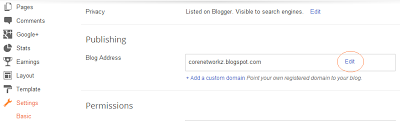
- Click edit and change the current blog name with the new name. Click on Save after completing the process.
- You have done. :)
How to remove Temp file from your computer??
No commentsMonday, June 24, 2013
Hi budys today I'm going to post "How to delete temp file from your computer" and make your computer fast. This is a fantastic tutorial for my main articles where most of the time we provide steps like remove the temp files other not necessaries files, cache, prefect etc as a part of troubleshooting procedure in our comouter . In order to avoid writing the same steps again and again in every guides, I prefer to write a detailed guide on removal of temporary files and cache files from Windows computer. Please note that many recommends to delete the below listed files in safe mode for the perfect completion of the task but we can do the same in normal mode too.
How to Clear Temp files in Windows 7 Computer
In order to clear temporary files in Windows 7 computer follow the simple steps below with me .
1. Click on Windows Start button
2. Click on Run or Press (Widows key+r)
3. Type temp on Run and press enter
4. Delete all files listed on there
5. Now Again type %temp% on Run and press enter
6. Delete files listed here too
Please note that the files currently under use cannot be deleted and may show an error message.like this

check mark ther ( do this for all current items) after check mark click Skip button
Empty Prefect Folder
Prefetch folder contain files which tell how the software installed in your computer works. Normally you do not need to delete files in this folder. In case if you want to delete files in prefect folder follow the steps below.
1. Click on Windows Start
2. Click on Run or Press (Widows key+r)
3. Type prefetch and press Enter
4. Delete the files
You have done it help you to run smoothly your computer.
also check this.
Windows 7 Themes download Free
How to Clear Temp files in Windows 7 Computer
In order to clear temporary files in Windows 7 computer follow the simple steps below with me .
1. Click on Windows Start button
2. Click on Run or Press (Widows key+r)
3. Type temp on Run and press enter
4. Delete all files listed on there
5. Now Again type %temp% on Run and press enter
6. Delete files listed here too
Please note that the files currently under use cannot be deleted and may show an error message.like this
check mark ther ( do this for all current items) after check mark click Skip button
Empty Prefect Folder
Prefetch folder contain files which tell how the software installed in your computer works. Normally you do not need to delete files in this folder. In case if you want to delete files in prefect folder follow the steps below.
1. Click on Windows Start
2. Click on Run or Press (Widows key+r)
3. Type prefetch and press Enter
4. Delete the files
You have done it help you to run smoothly your computer.
also check this.
Windows 7 Themes download Free
Facebook tricks" Update blank Facebook Status"
No commentsJust follow step by step
 Click on status bar and also Comment Box Hold on "Alt" key and type 0173 [ Alt+0173] Now leave hold and press Enter Key That's you are done
 You might also like
Happy Bloging !! :)
Back To HOME
Please like our facebook page and keep Visiting Our Blog .
Subscribe to:
Posts (Atom)


